How to Import Grok Bot Agents into Bot AI
Move your Grok Bot agents into Bot AI with one ZIP export. Follow the steps for instructions, skills, memories, routines and optional files.
You can bring your Grok Bot agents into Bot AI without rebuilding their setup one by one. An export agent in Grok Bot packs the agents you choose into a ZIP file. Bot AI reads that file, shows a preview and creates the selected agents.
The import can carry instructions, avatars, skills, routines, memories and optional workspace files. Group chats can become Bot AI channels. Original chat transcripts are not transferred: the export agent saves important facts from them as memories instead.
Before you start
Update Bot AI and decide where the agents should live: on this computer or on a Bot AI server you have joined. The import goes into the server whose settings you open.
You will also need access to your agents in Grok Bot and somewhere to save the export file. You can keep using the originals while you check the copies in Bot AI.
1. Open Import in Bot AI
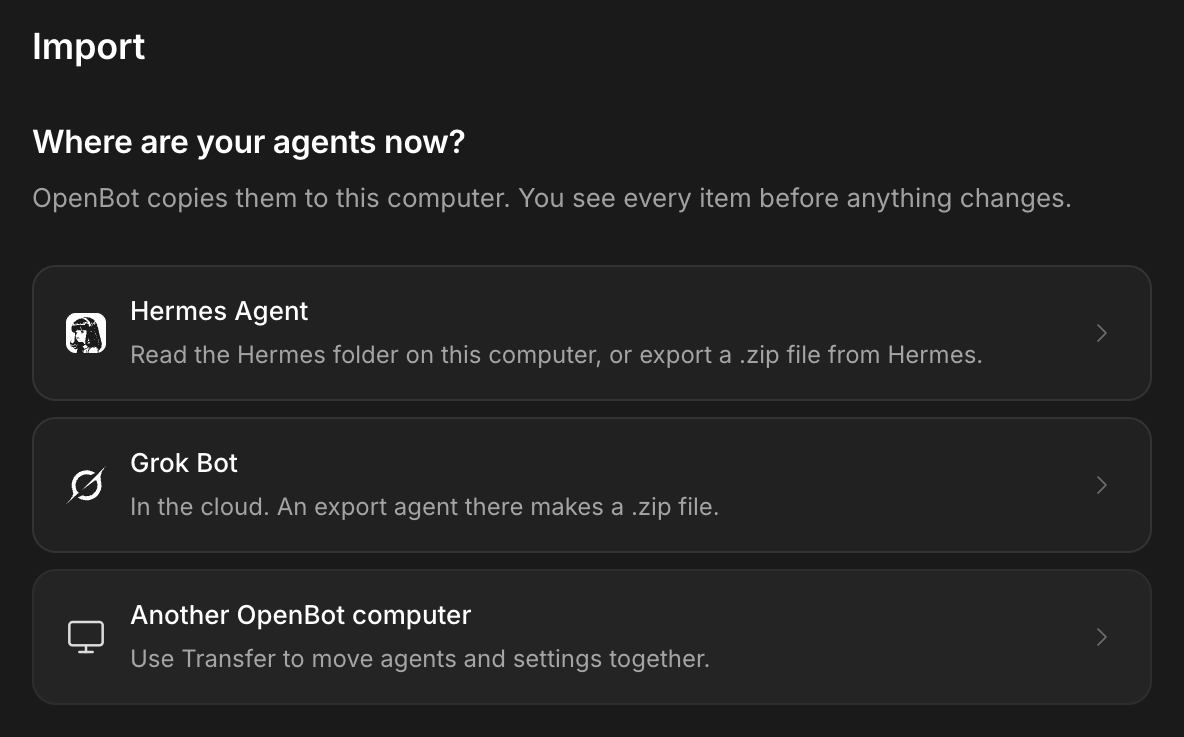
Open Server settings → Import, then choose Grok Bot.
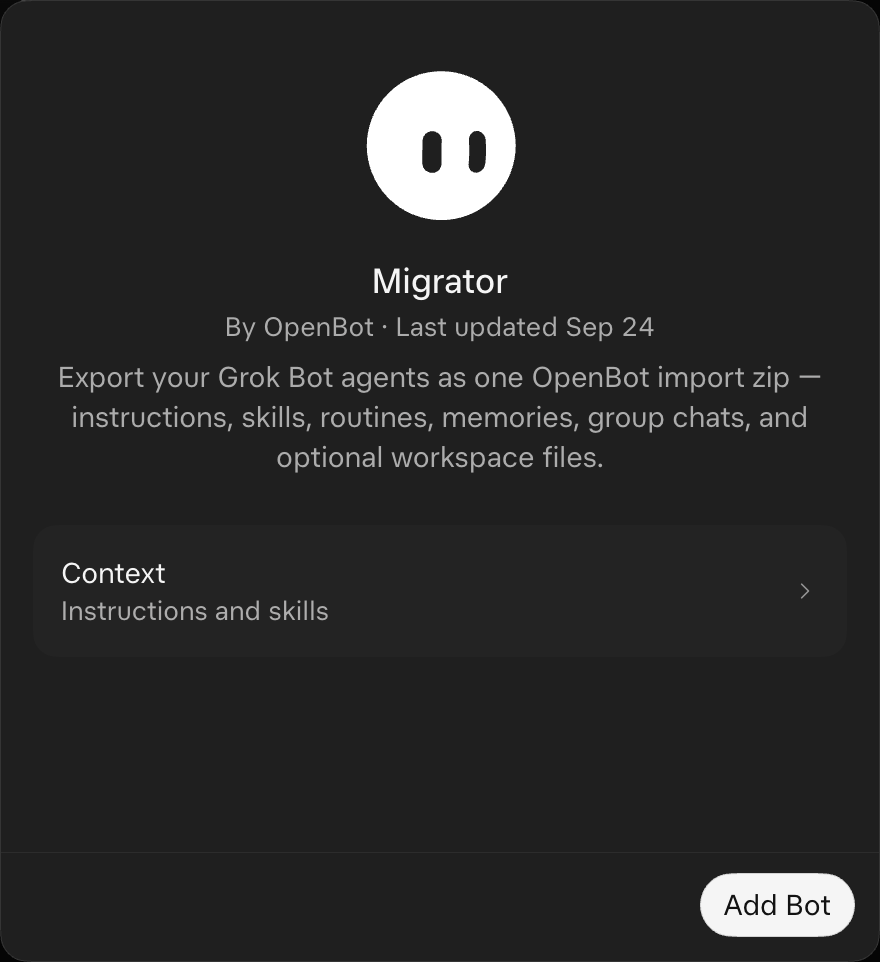
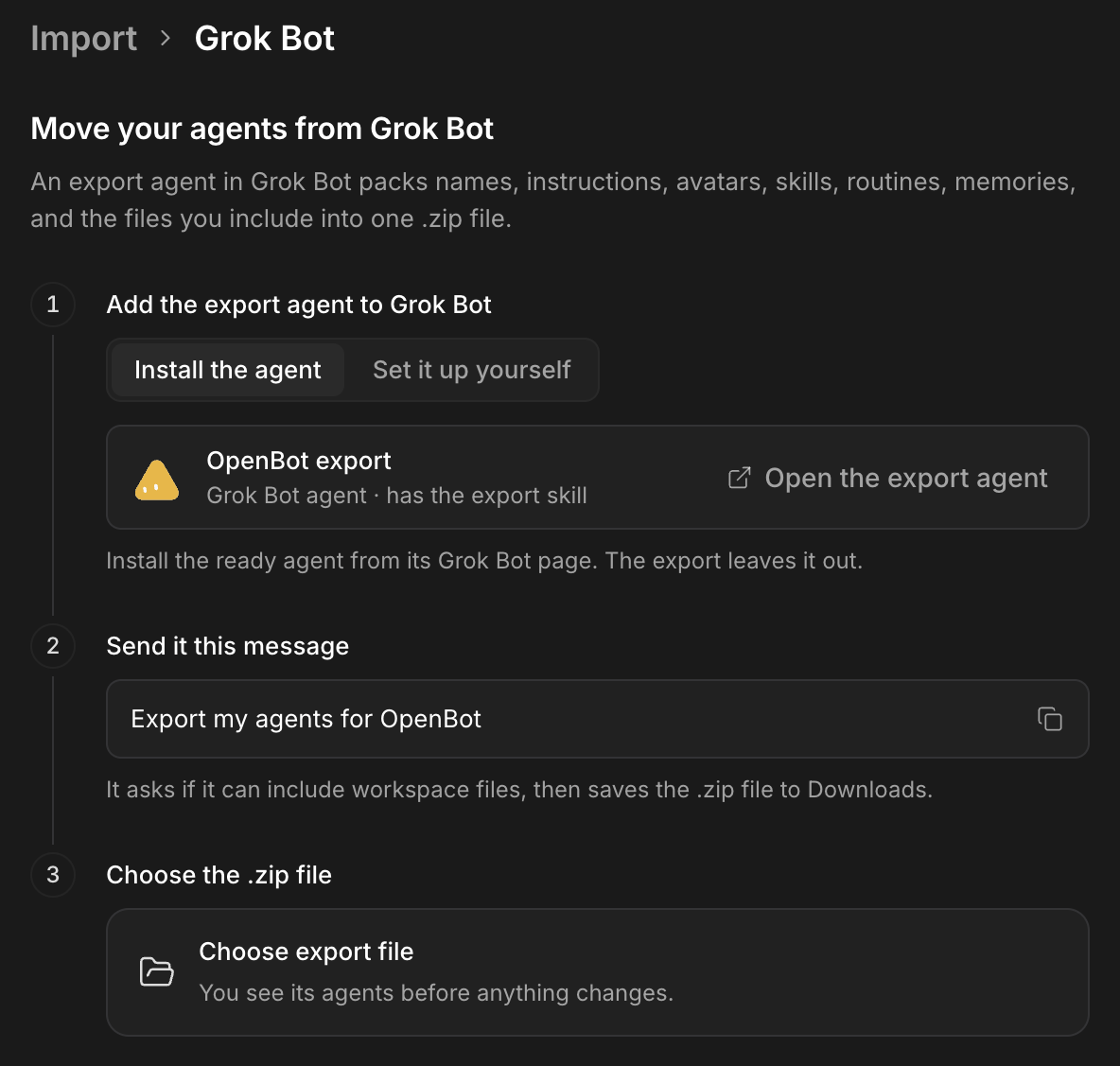
The page shows the export instructions and a card for Bot AI export. Select Open the export agent. This opens the Grok Bot page for Migrator by Bot AI, the agent prepared for this job.
Add it to Grok Bot. It is a separate export agent; you do not need to replace the instructions of an agent you already use.
2. Ask the export agent to prepare your agents
Send this message in the export agent's Grok Bot conversation:
Export my agents for Bot AI
It should list the agents and group chats it finds, then ask which ones you want and whether to include workspace files. Choose a small set for your first import if you would like to check the result before moving the rest.
Including files brings the selected working documents along. Leaving them out makes a smaller export. The export skill tells the agent to exclude credential files, passwords, tokens and other secrets; keep these out of any material you include.
The export agent leaves itself out of the archive. It also leaves out its own export skill.
3. Save the ZIP file
When the export finishes, the agent should give you one file in Downloads, named like bot-ai-export-2026-10-27.zip. The date in the name depends on when you export it.
Use the completed ZIP file. Do not unzip it or select a temporary .zip.part file.
Read the export agent's summary of what it included and anything it could not read. If an important agent or file is missing, ask it to correct the export before continuing.
4. Review the export in Bot AI
Return to Server settings → Import → Grok Bot and select Choose export file.
Bot AI shows the agents before importing them, with counts for items such as skills, routines, memories and files. If the export includes group chats, review the channels too. A channel needs at least one of its agents selected to be imported.
Select the agents and channels you want. Read any warnings about items that will not move, then use the Import button showing your selected counts.
If a matching agent name already exists, Bot AI asks you to confirm the duplicate. A ZIP import creates a separate agent; it does not update the existing one.
5. Check the result
The Import finished screen lists what was imported and anything that was skipped. Open an imported agent and check its instructions, memories, skills and routines.
Workspace files included in the export are placed in an imported/ folder inside that agent's Bot AI workspace. If the original instructions were long, the export may keep a short version in the instructions and put the full text in imported/INSTRUCTIONS.md.
Choose the provider and model you want to use in Bot AI, and complete any sign-in it requires. Moving an agent's setup does not transfer a Grok Bot subscription or sign-in session.
Review enabled routines and their times before relying on them. Then give the agent one small task, such as:
Read your imported instructions and memories, list the files you can find in imported/, and tell me what needs setting up before you continue my work. Do not send or publish anything.
What moves, and what stays behind?
The export is designed to carry the agent's name, role, instructions, avatar, skills, supported routines and memories. Selected working files are optional. Group-chat setup, membership and saved facts can become channels and channel memories.
The original conversations do not become Bot AI chat history. Memories are a summary of selected facts, so check that the preferences, decisions and unfinished work you care about are represented correctly. Provider access and external services may need to be connected again.
For an import into this computer, Bot AI reads the ZIP locally. For a joined server, the ZIP is sent through the encrypted host connection to the computer running that server. If a remote export is too large, try fewer agents or leave workspace files out.
If the import does not work
If you cannot find the Grok Bot source, check that Bot AI is up to date and that you opened the settings of the intended server.
If the ZIP is rejected, ask the export agent to rebuild it using the Bot AI export skill. It needs the Bot AI import format; a general backup of the Grok Bot workspace is not the same file.
If only part of an import succeeds, read Not imported and the warnings before trying again. Select the missing agents on a retry so you do not create extra copies of agents that already arrived.
Frequently asked questions
Will I keep all my chat history? No. The export agent turns important facts into memories. Original messages and their full conversation history are not imported.
Can I move only one agent? Yes. Choose it when preparing the export or select only that agent in Bot AI's preview.
What if I cannot install the ready export agent? Bot AI also offers Set it up yourself. Copy or save the supplied SKILL.md, add it to a separate export agent in Grok Bot, then send the same export message.